How to Recompute GSTR-2B After Taking Mid-Month IMS Actions: Avoiding Portal Freezes
Executive Summary
The introduction of the Invoice Management System (IMS) on the GST Portal marks one of the most significant paradigm shifts in Indian indirect tax compliance since the rollout of GSTR-2B in 2020. IMS allows taxpayers to actively Accept, Reject, or keep Pending inward supply invoices populated by suppliers in their GSTR-1, GSTR-1A, or IFF filings before claiming Input Tax Credit (ITC).
However, managing mid-month IMS actions introduces technical and procedural complexity. Taking actions on the IMS dashboard mid-month alters the baseline dynamic data used to construct your monthly GSTR-2B statement. Attempting to generate GSTR-3B or reconcile purchase registers without understanding how to trigger a manual Recompute GSTR-2B command often leads to systemic issues: stale ITC figures, locked filing queues, system warnings, and GST portal freeze states.
This ultimate guide breaks down the precise mechanics of mid-month IMS actions, step-by-step instructions for triggering GSTR-2B recomputation, strategies for avoiding technical portal locks, and practical workflows to keep your monthly tax filing seamless.
Section 1: Understanding the Invoice Management System (IMS) Architecture
To master GSTR-2B recomputation, one must first understand how the GST Portal constructs inward tax credit availability.
1.1 What is IMS and How Does It Intersect with GSTR-2B?
Prior to IMS, GSTR-2B was a static, auto-generated read-only statement generated once a month on the 14th for every registered taxpayer based on supplier filings made up to the 13th. Taxpayers had no systemic mechanism to flag rejected invoices or defer credit directly on the portal without manual adjustments in GSTR-3B.
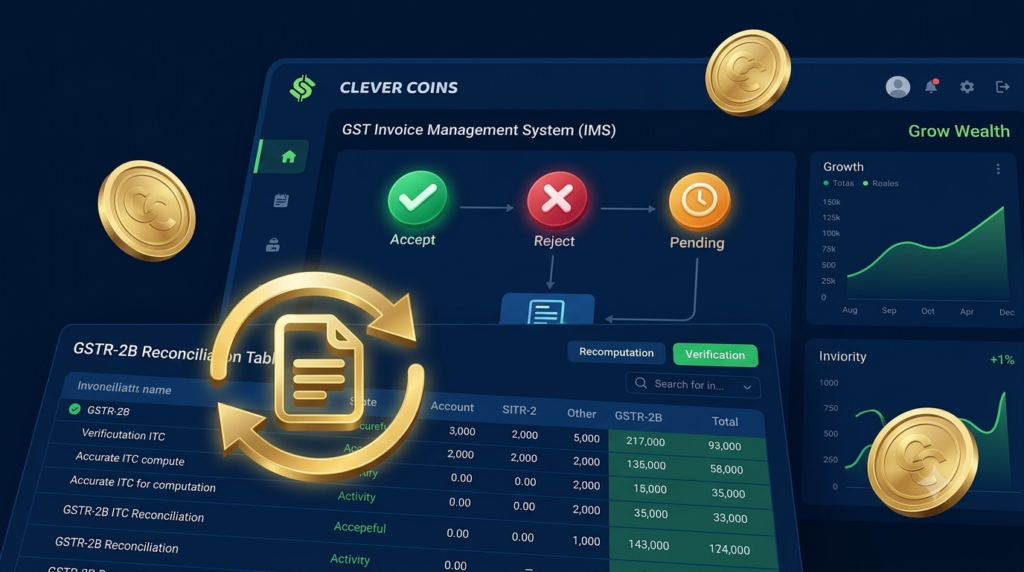
IMS acts as an interactive gateway sitting between supplier GSTR-1 filings and recipient GSTR-2B generation:
-
Supplier files GSTR-1/1A/IFF: Invoices flow in real time to the recipient’s IMS dashboard.
-
Recipient takes Action: Taxpayer tags each invoice as Accepted, Rejected, or Pending.
-
GSTR-2B Drafting: On the 14th of the month, the portal drafts GSTR-2B based on the actions saved in IMS as of cut-off.
1.2 The Default Logic of IMS Actions
When invoices appear on your IMS dashboard, the portal applies default logic if no explicit action is taken:
| Taxpayer Action in IMS | System Treatment | Impact on GSTR-2B ITC Availability |
| No Action Taken | Deemed Accepted | Auto-populates into GSTR-2B as Eligible ITC. |
| Accepted | Confirmed Eligible | Flows into GSTR-2B Section 3 (ITC Available). |
| Rejected | Flagged Ineligible | Excluded from Eligible ITC; added to Ineligible/Rejected section. |
| Pending | Deferred | Retained in IMS dashboard for future periods; withheld from current GSTR-2B. |
Section 2: Why Mid-Month IMS Actions Cause Portal Freezes and Stale Data
Taxpayers frequently update their purchase registers throughout the month. When supplier invoices arrive late or purchase reconciliation happens in batches mid-month (e.g., between the 15th and 18th of the month), accountants take fresh actions on the IMS portal.
2.1 The “Stale Statement” Problem
If GSTR-2B was auto-generated on the 14th based on state $S_0$, and you execute new Accept/Reject actions on the 16th (state $S_1$), your visible GSTR-2B statement remains stuck at $S_0$ until a manual recomputation is explicitly initiated.
If you attempt to file GSTR-3B while GSTR-2B is in state $S_0$ despite IMS being in state $S_1$, the portal detects an ITC checksum mismatch.
2.2 Causes of GST Portal Freezes and Buffer Errors
-
Concurrent Recomputation Queues: The GST Portal limits computational load by queueing recomputation requests. Repeatedly clicking “Recompute” within minutes causes request collisions, triggering a
Request Already Under Processlock. -
Pending Actions Block: Navigating to GSTR-3B while an IMS recompute job is actively running in the background freezes the GSTR-3B table, displaying grayed-out input boxes.
-
GSTR-1 / GSTR-1A Supplier Amendments: If a supplier amends an invoice via GSTR-1A while you are taking IMS actions, the underlying document status changes, causing an optimistic concurrency lock on the IMS portal.
Section 3: Step-by-Step Guide to Recomputing GSTR-2B Correctly
Follow this systematic operational procedure to recompute GSTR-2B safely after taking mid-month IMS actions
Step 1: Complete and Save All Pending IMS Actions
-
Log into the GST Portal (
gst.gov.in). -
Navigate to Services > Returns > Invoice Management System (IMS) Dashboard.
-
Select the relevant Financial Year and Return Period.
-
Perform all required actions (Accept, Reject, Pending) for inward supply invoices.
-
Click Save / Submit on the IMS dashboard and verify that the status of each modified line item reflects the intended state.
Crucial Rule: Do not trigger GSTR-2B recomputation until all invoice reviews for the batch are complete. Triggering recomputation iteratively for individual invoices will cause queue throttling.
Step 2: Access the GSTR-2B Dashboard
-
Return to the Returns Dashboard.
-
Select the tax period for which you are filing.
-
Locate the Auto-drafted ITC Statement GSTR-2B tile and click View.
Step 3: Trigger the Manual “Recompute GSTR-2B” Request
-
Locate the Recompute GSTR-2B button situated at the top right of the summary page.
-
Click the button once. A confirmation modal will appear:
“Recomputation will update GSTR-2B based on the latest actions taken in IMS. Are you sure you want to proceed?”
-
Confirm the prompt.
Step 4: System Queue Processing and Refresh Protocols
-
Upon confirmation, the portal assigns a Reference Tracking ID to your recomputation request.
-
A status banner will display:
Recomputation Request Received. System is updating your GSTR-2B. -
DO NOT hit browser refresh ($F5$) or click the recompute button again repeatedly.
-
Wait 10 to 15 minutes for background queue compilation.
-
Refresh the dashboard using the GST Portal Refresh Icon inside the portal page. Once complete, the timestamp under “Last Generated On” will update to the current time.
Step 5: Validate Auto-Population in GSTR-3B
-
Navigate to GSTR-3B > Table 4 (Eligible ITC).
-
Verify that Table 4(A)(5) [All Other ITC] and Table 4(B)(2) [Reversed ITC] exactly mirror your newly recomputed GSTR-2B summary figures.
Section 4: Deep Dive — Resolving System Freezes and Portal Errors
Case Study A: The Infinite “Request Under Process” Loop
Problem Scenario
An accountant takes 50 IMS actions at 11:00 AM, clicks Recompute GSTR-2B, notices no immediate change after 2 minutes, and clicks Recompute again three times. The page locks with error code ERR-IMS-2B-503: Request already in queue.
Diagnostic & Fix Procedure
-
Clear Session Cache: Log out of the GST portal. Clear browser cache and cookies for
*.gst.gov.in. -
Wait for Lock Expiry: The GST server applies a 20-minute cooling lock on recomputation requests per GSTIN. Do not attempt login for 20 minutes.
-
Re-login & Check Status: Log back in and navigate directly to GSTR-2B. Check the timestamp. If the processing completed, the updated timestamp will show.
-
Force Cache Re-evaluation: If figures still appear old, download the JSON file of GSTR-2B and inspect the
gstr2b_gen_dttimestamp field.
Case Study B: Mismatch Between IMS Summary and Recomputed GSTR-2B
Problem Scenario
The taxpayer marked an invoice of ₹5,00,000 tax value as Rejected on IMS. After clicking Recompute GSTR-2B, the invoice still appears under “ITC Available” in GSTR-2B Table 3.
Causes and Solutions
-
Unsaved Action in IMS: Ensure you clicked “Save” on the individual row or batch selection in IMS before exiting. Unsaved radio button choices revert to “No Action Taken” (Deemed Accepted).
-
Supplier Amendment via GSTR-1A: If the supplier filed an amendment in GSTR-1A after you took an action, your previous action is reset by the system to “Pending”. You must review the updated GSTR-1A record in IMS and action it again before recomputation.
-
Stale GSTR-3B Draft: GSTR-3B saves draft state local to your login session. Click Reset at the bottom of the GSTR-3B entry screen to purge cached values and re-import the updated GSTR-2B table.
Section 5: Best Practices for Tax Teams & Accountants
To eliminate mid-month chaos and avoid portal freezes, implement this standard operating procedure (SOP) across your finance department:
Rule 1: Adopt “Single-Batch” IMS Action Execution
Do not make piecemeal updates to IMS throughout the day. Perform purchase register reconciliations offline using robust automated tools, compile all Accept/Reject/Pending decisions, and execute them in a single IMS session.
Rule 2: Observe the 14th-to-20th Filing Window Workflow
-
14th of the Month: Review initial auto-generated GSTR-2B statement.
-
15th – 17th of the Month: Run automated reconciliation with ERP (SAP, Tally, Zoho Books). Execute actions in IMS.
-
18th of the Month: Trigger ONE GSTR-2B Recomputation request during non-peak server hours (early morning or late evening).
-
19th – 20th of the Month: Verify GSTR-3B auto-populated tables and execute tax payment and filing.
Rule 3: Maintain an Audit Trail of IMS Actions
Under GST regulations, taking action on IMS establishes legal intent regarding ITC claims. Maintain a downloadable copy of your IMS Action History Log along with the corresponding GSTR-2B JSON for every tax period to support your position during departmental audits or show-cause notices (SCNs) regarding Rule 36(4) compliance.
Frequently Asked Questions (FAQs)
Q1: Can I recompute GSTR-2B multiple times in a single tax period?
Yes. There is no statutory limit on how many times you can trigger GSTR-2B recomputation. However, to prevent server overloading, the GST portal enforces a time delay lock between consecutive recomputation requests for the same GSTIN.
Q2: What happens if I take IMS actions but forget to click “Recompute GSTR-2B”?
If you do not manually trigger recomputation after making mid-month IMS changes, your GSTR-2B will continue to reflect the older state. When you open GSTR-3B, it will auto-populate figures based on the un-updated GSTR-2B, leading to incorrect ITC claims or wrongful reversals.
Q3: Does taking a “Pending” action in IMS permanently reject the ITC?
No. Selecting “Pending” Defers the invoice. The invoice is withheld from the current month’s GSTR-2B without being rejected. It will roll over and continue to appear on your IMS dashboard in subsequent tax periods until you explicitly mark it as Accepted or Rejected.
Q4: Why is the “Recompute GSTR-2B” button grayed out on my portal?
The recompute button becomes inactive/grayed out under three conditions:
-
No changes have been made in the IMS dashboard since the last GSTR-2B generation.
-
A previous recomputation request is currently being processed by the system queue.
-
The GSTR-3B for the corresponding tax period has already been successfully filed.
Summary Checklist for Tax Teams
| Step | Task | Status |
|---|---|---|
| 1 | Reconcile Purchase Register with IMS line items | [ ] |
| 2 | Mark all Accept / Reject / Pending statuses in IMS | [ ] |
| 3 | Click Save in IMS and verify status changes | [ ] |
| 4 | Navigate to GSTR-2B and trigger Recompute GSTR-2B | [ ] |
| 5 | Wait 15 minutes without re-triggering; refresh portal | [ ] |
| 6 | Verify “Last Generated On” timestamp is updated | [ ] |
| 7 | Cross-check GSTR-3B Table 4 with updated GSTR-2B summary | [ ] |
| 8 | Download & Archive IMS Action Log for Audit Trail | [ ] |